What it is, how it deals with sensitive information, and how it competes with Google’s Gemini
Anthropic’s latest breakthrough puts Claude’s intelligence directly inside your Google Workspace, if you choose to integrate, potentially transforming how creators work. This integration weaves AI assistance into your searches, documents, spreadsheets, and presentations, but what does it really mean for writers and how does it work?
As someone who has navigated the evolution from typewriters to AI assistants, I’ve discovered how this new toolset fundamentally changes the creative process. Let me walk you through the practical workflows this unlocks and how it will revolutionize your approach to research, drafting, and editing.
What’s New with Claude’s Google Integration?
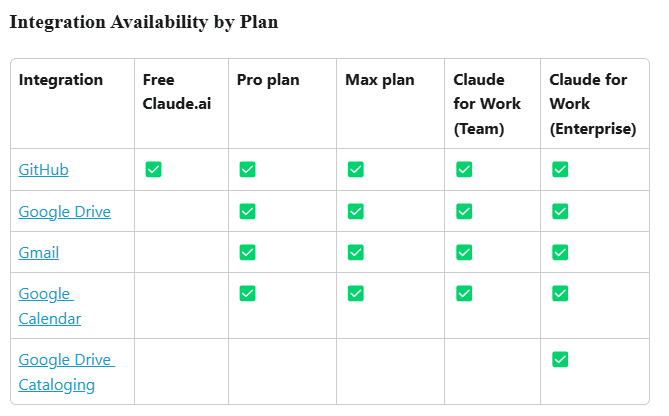
Anthropic has integrated Claude with Gmail, Google Calendar, and Google Docs in a beta release available now to all paid users (Pro, Max, Team, and Enterprise plans). This integration allows Claude to:
- Search and reference your emails in Gmail.
- Access scheduled events in Google Calendar.
- Analyze documents in Google Docs.
- Provide citations when referencing your content.
What makes this especially powerful is that it works alongside Claude’s new Research feature, enabling multi-step search capabilities across both your personal content and the web.
If you’re a little leery about enabling access to an LLM, inviting them into your millions of gmails and Docs from years of content creation, I hear you. This article will cover what you need to know, including the benefits and risks.
Remember, this is a beta program that was released yesterday, it may be wise to wait for early bugs to be worked out. Or, if you’re like me you’ll jump right in and want to see what’s what.
Getting Started Quick Guide
- Check your eligibility: You need a paid plan (Pro: $17/month, Max: $100/month, or Team/Enterprise) to be eligible to activate the connection.
- Enable the integration:
- Go to Profile Settings in Claude.
- Connect your Google Workspace account.
- Team/Enterprise users: Your admin must enable this first.
- Start using it: Simply ask Claude to access your Google content in your prompts.
Practical Workflows for AI+Human Writers
Content Research Amplified:
The old way: Manually searching emails for source material, switching between documents, copying/pasting information.
The new way: “Claude, find emails from my client about the AI ethics project, summarize my notes in Google Docs on this topic, and outline a comprehensive article combining this with the latest research.”
Claude will now:
- Pull relevant emails about the project.
- Access and analyze your existing notes.
- Combine with web search for current information.
- Deliver a comprehensive outline with proper citations.
Client Project Management:
The old way: Juggling calendar events, email threads, and related documents separately.
The new way: “Claude, what’s my schedule for tomorrow, which client projects have deadlines this week, and what documents should I prepare for my upcoming calls?”
Claude can now present a unified view of your writing commitments across all Google services.
Document Analysis & Creation:
The old way: Uploading individual documents, limited context between files.
The new way: “Claude, analyze my three Google Docs drafts on sustainable technology, identify gaps in my research, and suggest how to merge them into a cohesive whitepaper.”
Claude can now work across your entire document ecosystem, maintaining context between files.
Of course, all of this hinges on you having an organized Google Drive – so it may be a good idea to do a little cleanup to maximize the benefits of a Claude – Google integration.
Handling Client NDAs and Sensitive Material
The integration raises important considerations for writers working with sensitive client information, and documents protected by NDAs:
Security mechanisms in place:
- Claude doesn’t automatically access all your Google Docs – you select which files to share.
- Authentication and access controls are strictly enforced.
- Each document stays synced with its latest version in Google Drive (it can’t access version histories).
Practical approaches for NDA work:
- Consider creating a separate Google account for non-NDA work to use with Claude.
- Only connect specific documents rather than entire Drive access.
- Use manual file uploads for the most sensitive materials.
Some things to note when using Claude + Google:
- .DOCX files are not currently supported.
- You can add multiple Google Docs to any given chat with Claude, it’s similar to uploading any file or link.
- Click the upload button to access a list of all your recent Docs to choose from.
- Alternatively, you can paste a Google Doc link.
- Only text is readable at this time, no images, comments, or suggestions (as of April 29, 2025).
Maximizing the integration as an AI+Human Writer
Create specialized prompts with context: “Claude, analyze my ‘Q2 Content Calendar’ document and the last 5 emails from [marketing@client.com] to identify patterns in requested revisions and suggest three ways to improve my upcoming article draft.”
Coordinate workflows: “Claude, find my calendar meeting notes from yesterday’s client call with TechCorp, combine them with their project brief in my Google Docs, and outline three potential angles for the white paper due next Friday.”
Use specific document references for precision: “Based on my ‘SaaS Marketing Strategy 2025’ document in the Client Projects folder and the email thread with subject ‘Campaign Analytics’ from marketing@client.com last week, what are the three key performance metrics we should highlight in tomorrow’s presentation?”
Track commitments and deadlines automatically: “Claude, what writing deadlines do I have this week according to my calendar? For each project, find any related client emails with specific requirements and create a prioritized task list with estimated completion times.”
Connect fragmented research across sources: “Find all mentions of ‘artificial intelligence ethics’ in my Gmail messages from the past month, my meeting notes in Google Docs titled ‘AI Conference Notes,’ and combine these insights with the latest research on responsible AI development for my upcoming opinion piece.”
What about Google’s Gemini?
Since Google has its own AI assistant (Gemini) that integrates with Google Workspace, it’s worth understanding the key differences between these two approaches:
Integration Depth – Gemini has a native integration with Google Workspace, offering seamless AI assistance across various apps. Claude’s integration is newer and may require additional setup steps in some cases.
Feature Focus – While Claude emphasizes research capabilities and document analysis, Gemini offers additional features specific to the Google ecosystem, including audio summaries, real-time interaction during meetings, and advanced collaboration tools.
Customization – Gemini allows users to create custom AI assistants within Workspace, providing flexibility to tailor AI functionalities to specific needs. Claude offers a different approach that focuses on its strengths in reasoning and research.
For writers specifically, the choice depends on your workflow:
- Choose Claude if you value its research capabilities, reasoning abilities, and prefer its writing style and approach to creative tasks.
- Choose Gemini if you’re deeply embedded in the Google ecosystem and want the most seamless native integration.
Many writers will likely benefit from using both tools strategically for different purposes. The cost difference is also notable: A Pro Anthropic subscription is $17/month (with discount for annual payment), while a Gemini Advanced subscription is $20/month. However, many Gemini features are available for free within Google Workspace.
Personally, I’ve created my writer’s cocoon within Claude and I’d rather do my research from there then go to google. [Update: On the other hand, Gemini Premium, which offers the full Google integration natively, has a 1-month free trial that I’ve just begun. So more on that later.]
Handling client NDAs and sensitive material
The integration raises important considerations for writers working with sensitive client information:
Security mechanisms in place:
- Claude only accesses specific documents you choose to share (via URL or selection)
- Claude doesn’t automatically access all your Google Docs – you select which ones to share
- Authentication and access controls are strictly enforced
- When you share a document, Claude only extracts the main text content (no images, comments, version history)
- Claude always sees the current version if you make updates in Google Drive
Practical approaches for NDA work:
- Consider creating a separate Google account for non-NDA work to use with Claude
- Only connect specific documents rather than entire Drive access
- Use manual file uploads for the most sensitive materials
Limitations to be aware of
- Claude can extract text from Google Docs but cannot interpret images in synced documents.
- The integration doesn’t give Claude the ability to schedule calendar events or send emails.
- Some file types (like .docx) need conversion to Google Docs format.
- Enterprise features like document cataloging offer additional speed/accuracy but aren’t available on all plans.
Building your knowledge ecosystem
By connecting Claude to your personal knowledge ecosystem, you gain a collaborator that understands your context, commitments, and content in ways previously impossible.
For AI+Human writers, this means:
- Less time spent on research and organization.
- Easier transitions between ideation, research, and writing.
- The ability to draw connections across your entire content ecosystem.
- A truly personalized AI writing assistant that builds on your existing work.
This Google Workspace integration, combined with Claude’s Research capability, transforms Claude from a helpful assistant to an integral partner in your creative process.
Taking action now
- Upgrade to a paid Claude plan if you haven’t already.
- Connect your Google Workspace account.
- Experiment with cross-platform prompts.
- Create a specialized writing workflow that leverages your connected content.
The future of AI+Human writing is integrated, contextual, and personal. With the Gen AI + Google integration, that future is available today.